
Oct 03
This tutorial will show you how to upgrade your jailbroken iPhone 3GS from OS 3.0.x to OS 3.1 using PwnageTool for Mac.


Step One

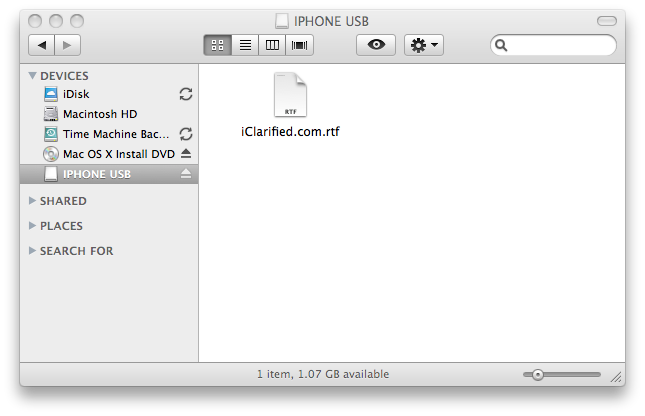
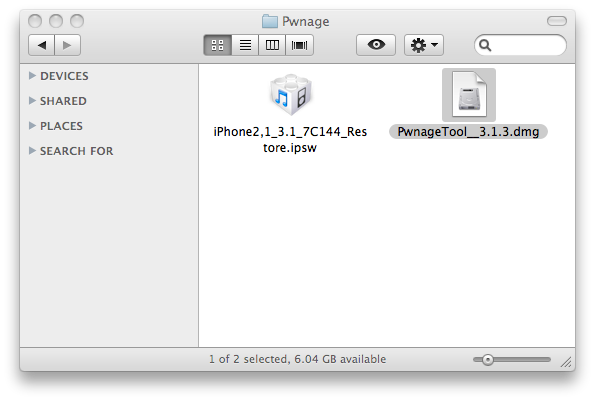
Make a folder called “Pwnage” on the desktop. In it, you will need a couple of things. PwnageTool 3.1.3, found here or here


You will also need the 3.1 iPhone firmware.


When downloading the IPSW file, it is best to download it with Firefox since Safari often auto extracts it!

20016 500 How To Upgrade Your Jailbroken IPhone 3GS To OS 3.1


Step Two

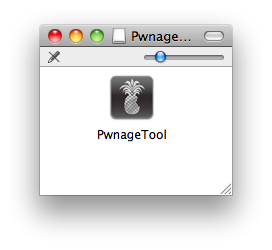
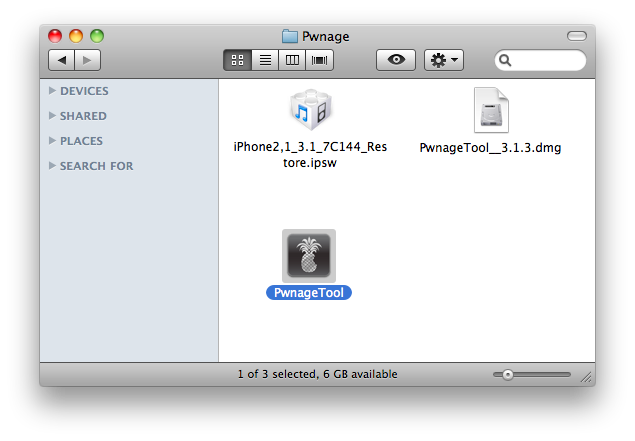
Double click to mount PwnageTool 3.1.3 then drag the PwnageTool icon into the Pwnage folder.

20018 How To Upgrade Your Jailbroken IPhone 3GS To OS 3.1


Then from the Pwnage folder double click to launch the PwnageTool application.

20019 500 How To Upgrade Your Jailbroken IPhone 3GS To OS 3.1


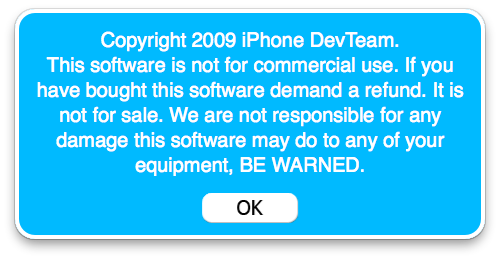
Click Ok if presented with a warning.

20020 500 How To Upgrade Your Jailbroken IPhone 3GS To OS 3.1


Step Three

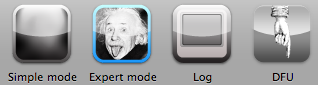
Click to select Expert Mode from the top menu bar

20021 How To Upgrade Your Jailbroken IPhone 3GS To OS 3.1


Step Four

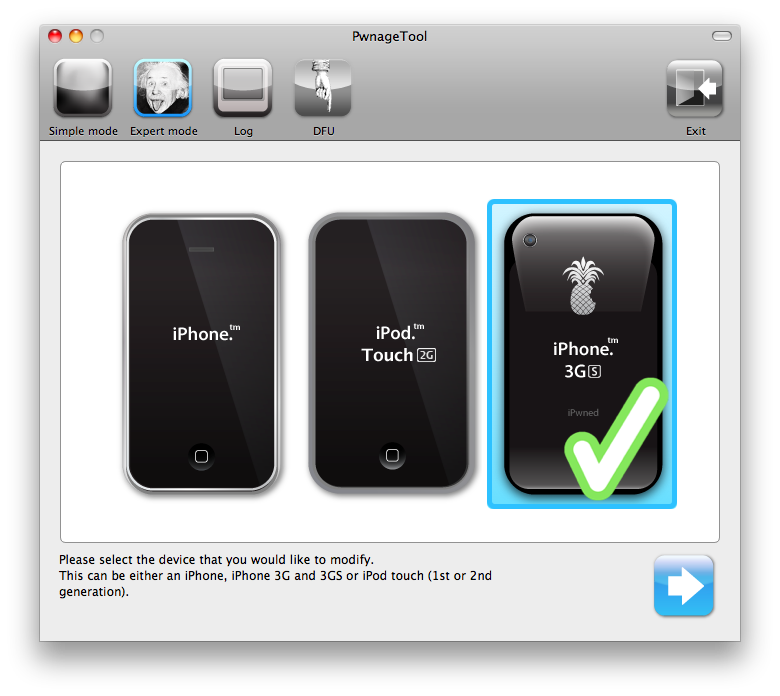
Click to select your iPhone. A check-mark will appear over the image of the phone.

20022 500 How To Upgrade Your Jailbroken IPhone 3GS To OS 3.1


Step Five

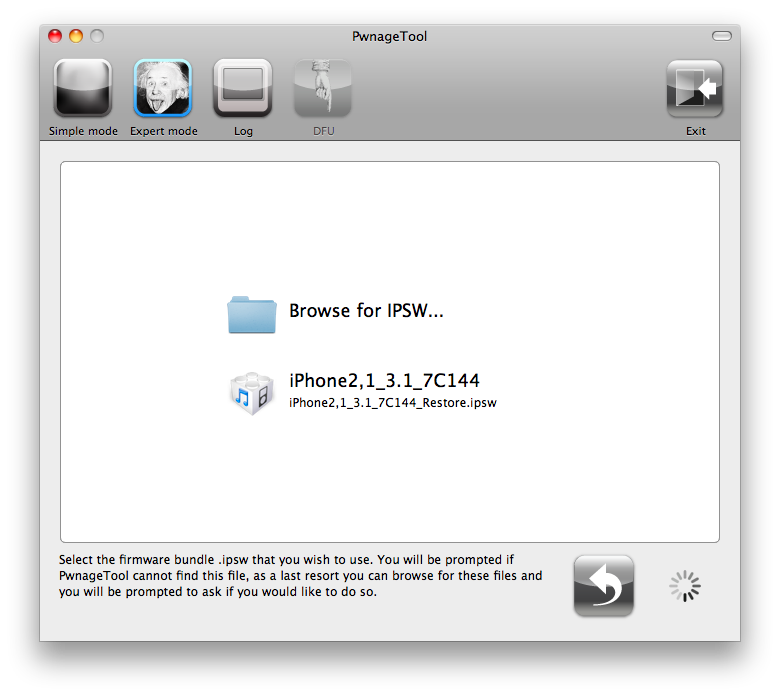
Click the blue arrow button to continue. You will be brought to the “Browse for IPSW” page. On my laptop, it automatically found the IPSW. If PwnageTool doesn’t automatically find the ipsw file you can click Browse for IPSW….

20023 500 How To Upgrade Your Jailbroken IPhone 3GS To OS 3.1


Click to select the found IPSW file, a checkmark will appear next to it. Then click the blue arrow button to continue.

20024 How To Upgrade Your Jailbroken IPhone 3GS To OS 3.1


Step Six

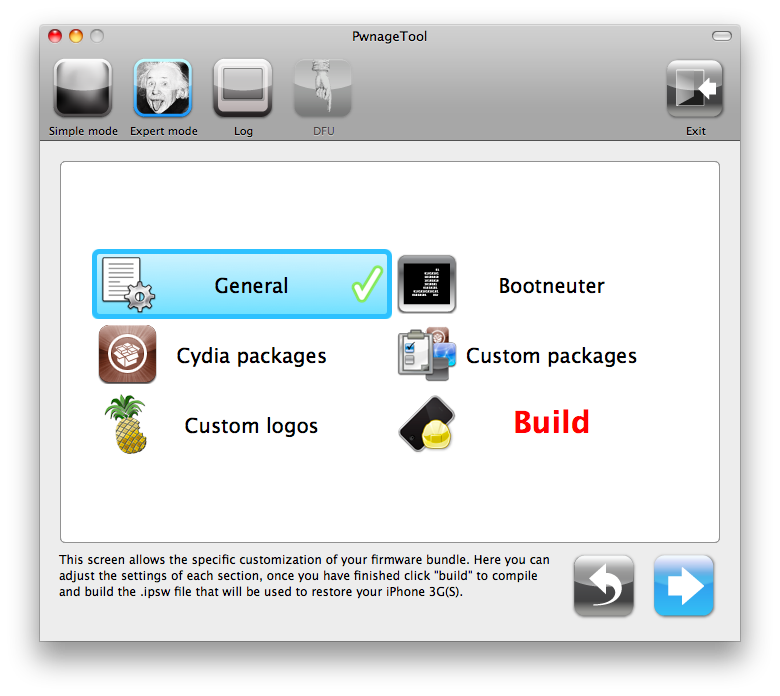
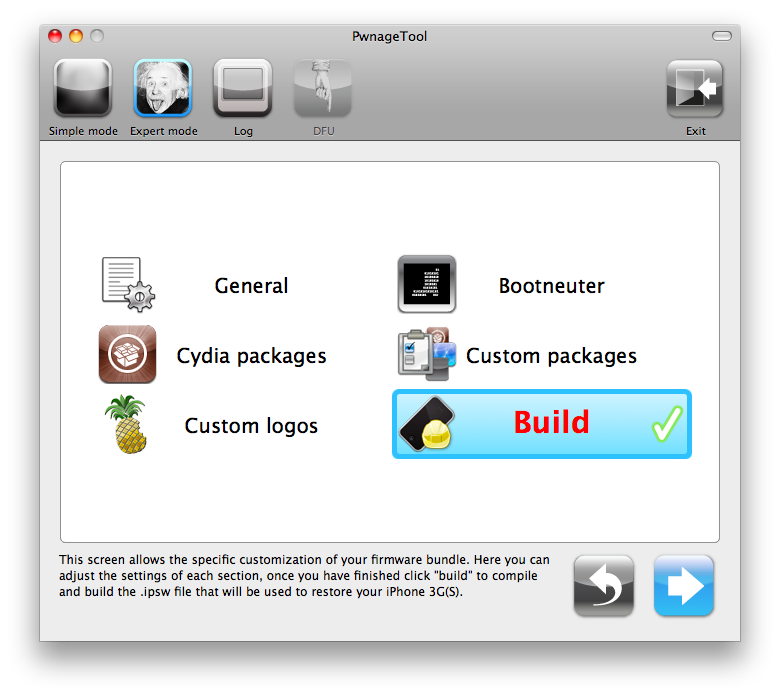
You will then be brought to a menu with 7 choices. Click to select General then click the blue arrow button.

20025 500 How To Upgrade Your Jailbroken IPhone 3GS To OS 3.1


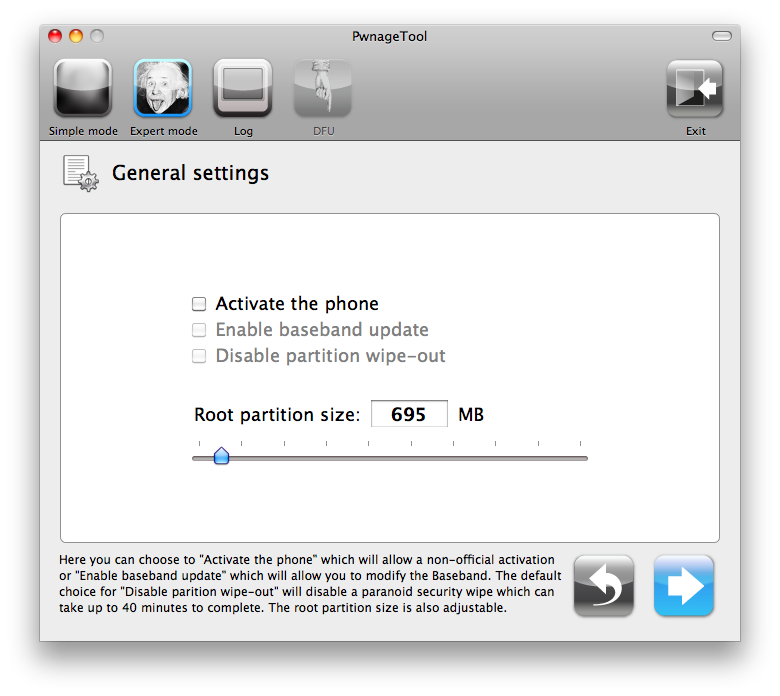
The General settings allows you to decide the partition size. Check Activate the phone if you are not with an official carrier then click the blue arrow button.

20027 500 How To Upgrade Your Jailbroken IPhone 3GS To OS 3.1


NOTE*: Deselect Activate if you have an iPhone legitimately activated on an official carrier.

NOTE*: You may need to increase the size of the root partition slightly. My first attempt failed at creating the IPSW until I increased the size to about 695 MB.


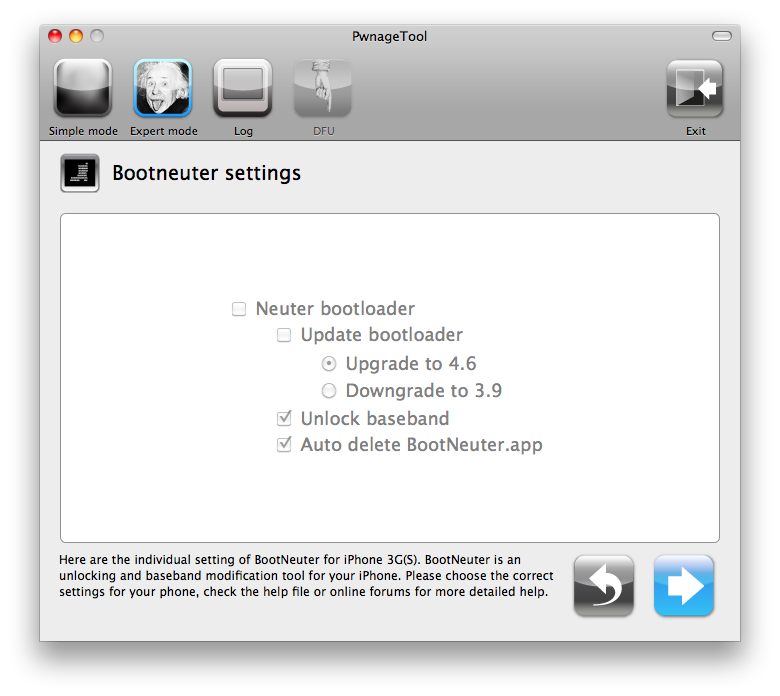
The Bootneuter settings are greyed out for the 3G iPhone. Click the blue arrow button.

20028 500 How To Upgrade Your Jailbroken IPhone 3GS To OS 3.1


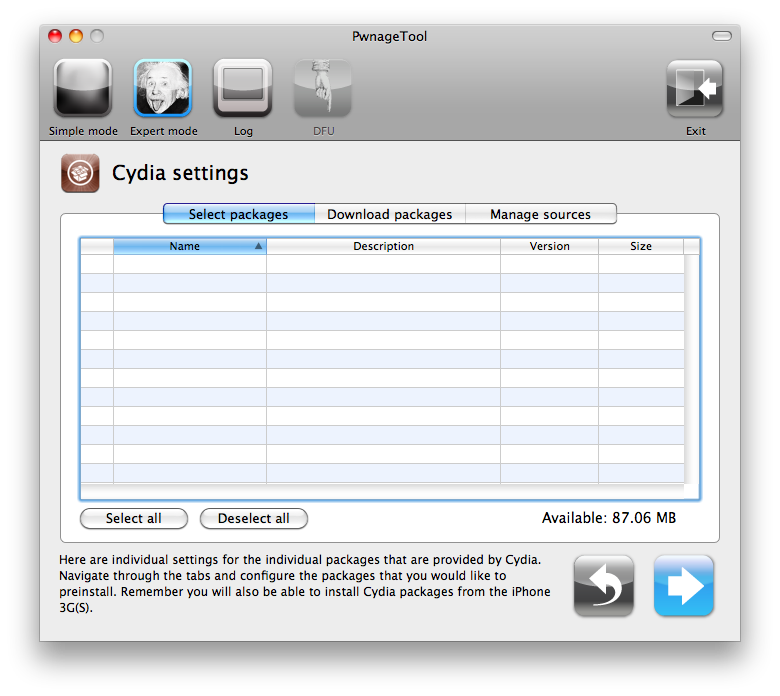
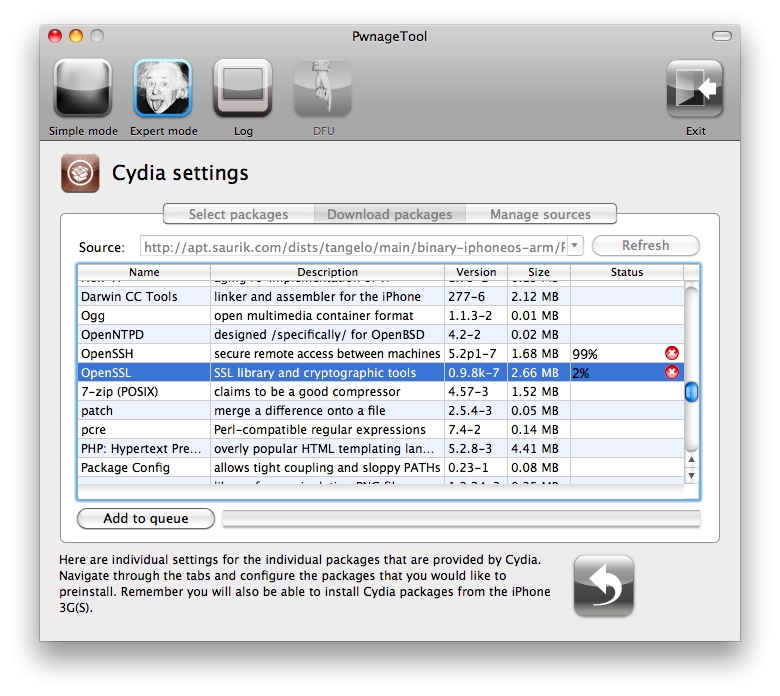
The Cydia settings menu allows you to create custom packages so you do not have to manually install the necessary them later.

20029 500 How To Upgrade Your Jailbroken IPhone 3GS To OS 3.1


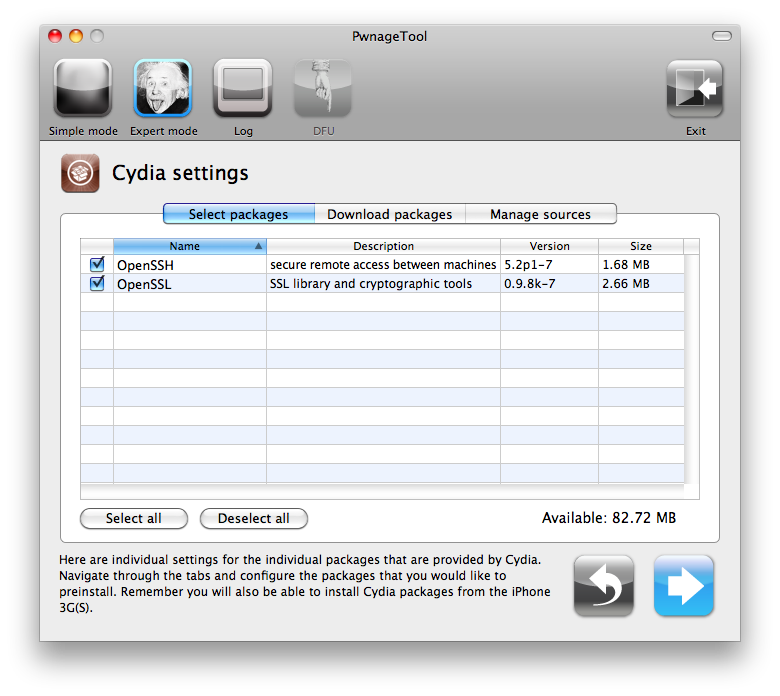
Click to select the Download packages tab. Then click the Refresh button to display all the available packages. Double clicking the package you want will download it and make it available in the Select Packages tab.

20032 500 How To Upgrade Your Jailbroken IPhone 3GS To OS 3.1


Checkmark the ones you want then Click the blue arrow button.

20033 500 How To Upgrade Your Jailbroken IPhone 3GS To OS 3.1


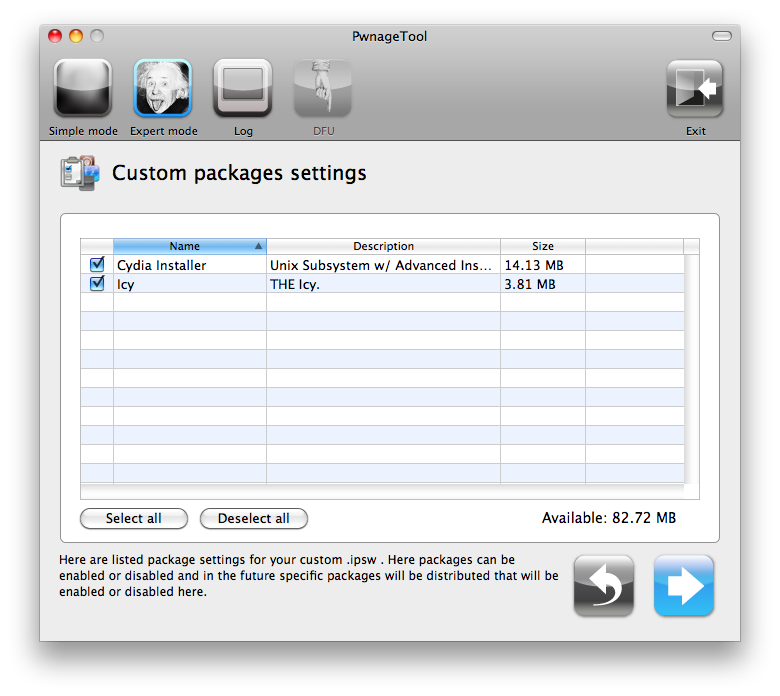
The Custom Packages Settings menu displays listed package settings for your custom IPSW. For know leave these settings as is. Click the blue arrow button to continue.

20034 500 How To Upgrade Your Jailbroken IPhone 3GS To OS 3.1


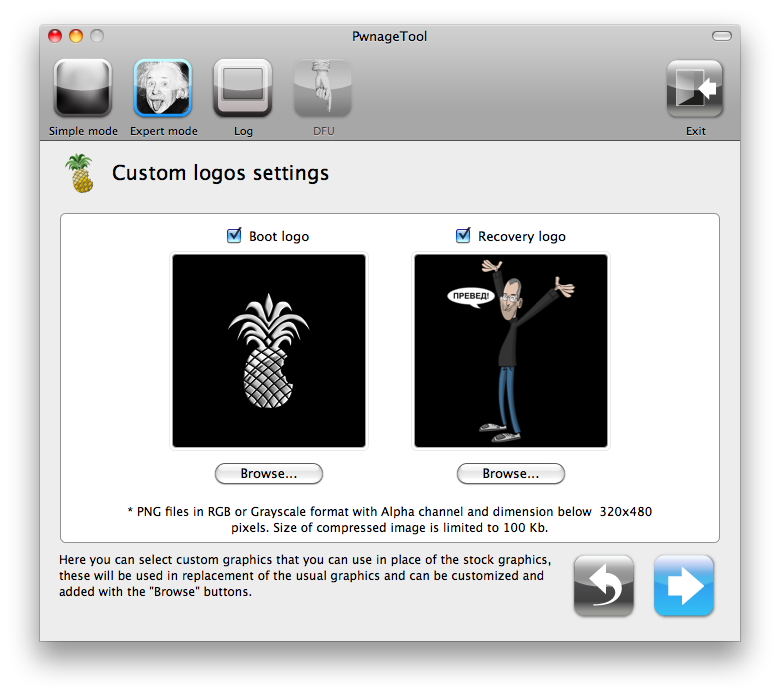
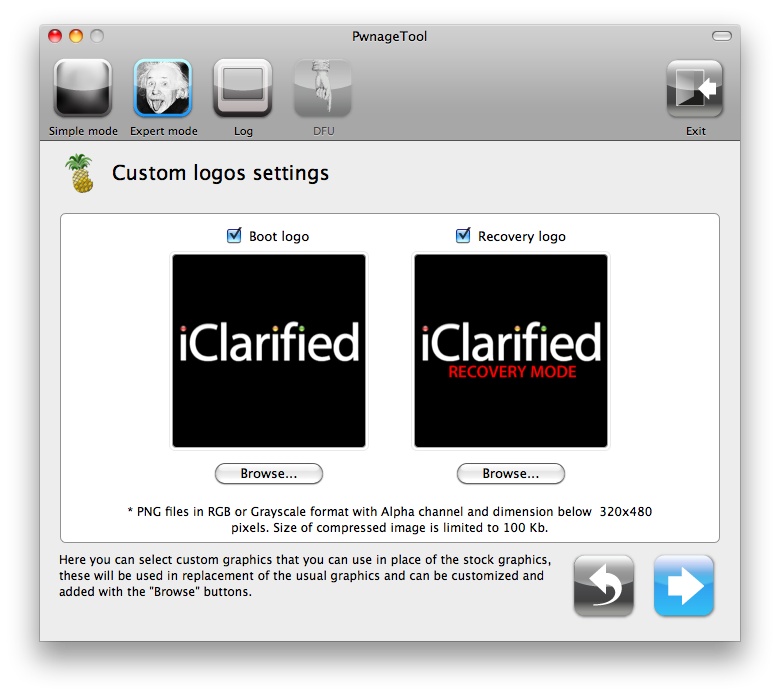
The Custom Logos Settings menu allows you to add your own images as boot logos. Click the Browse button to select your Boot logo and Recovery logo. If you would like to use the iClarified ones they can be found here:Boot Logo, Recovery Logo

20035 500 How To Upgrade Your Jailbroken IPhone 3GS To OS 3.1


Remember the rules for them: RGB or Grayscale format with Alpha channel and dimensions below 320×480…

20040 500 How To Upgrade Your Jailbroken IPhone 3GS To OS 3.1


Click the blue arrow button to continue.

Step Seven

You are now ready to begin the pwnage process! Click the Build button to select it then click the Blue arrow button to begin.

20041 500 How To Upgrade Your Jailbroken IPhone 3GS To OS 3.1


Step Eight

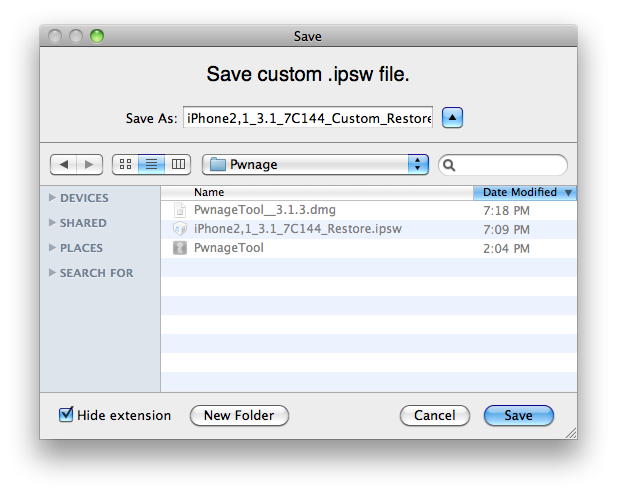
You will be asked to save your custom .ipsw file. Save it to your Pwnage folder you created on your Desktop.

20042 500 How To Upgrade Your Jailbroken IPhone 3GS To OS 3.1


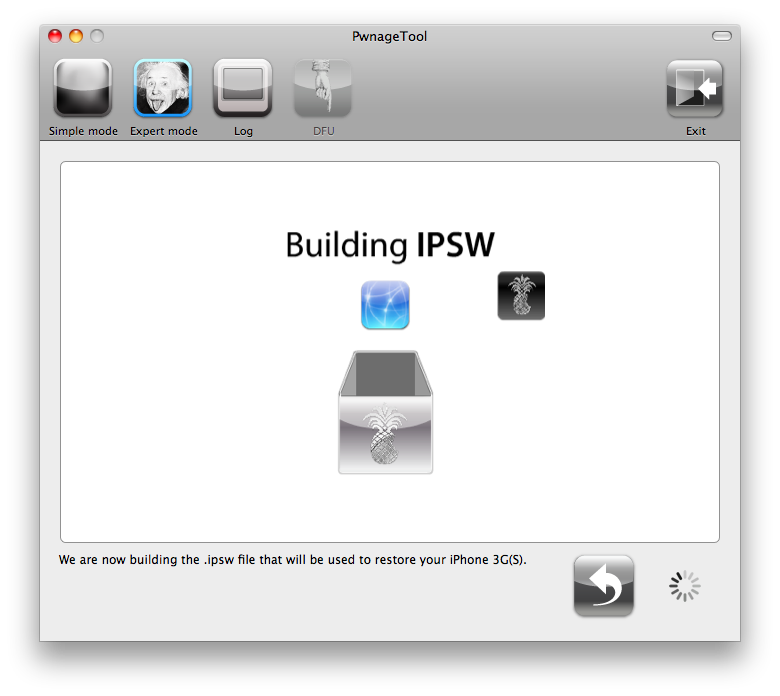
Your IPSW is now being built. Please allow up to 10 minutes.

20043 500 How To Upgrade Your Jailbroken IPhone 3GS To OS 3.1


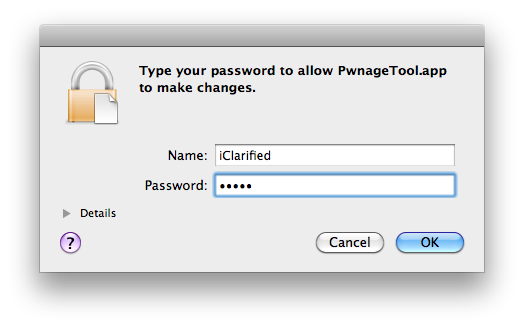
You will be asked to enter your administrator password. Do this then click the OK button.

20044 500 How To Upgrade Your Jailbroken IPhone 3GS To OS 3.1


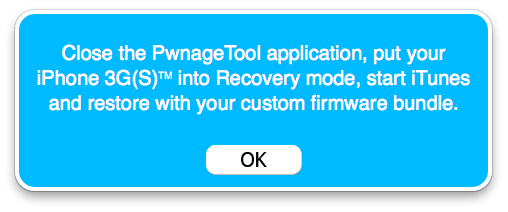
You will be prompted to close the PwnageTool application then put your iPhone into recovery mode. Click theOK button.

20045 500 How To Upgrade Your Jailbroken IPhone 3GS To OS 3.1


Step Nine

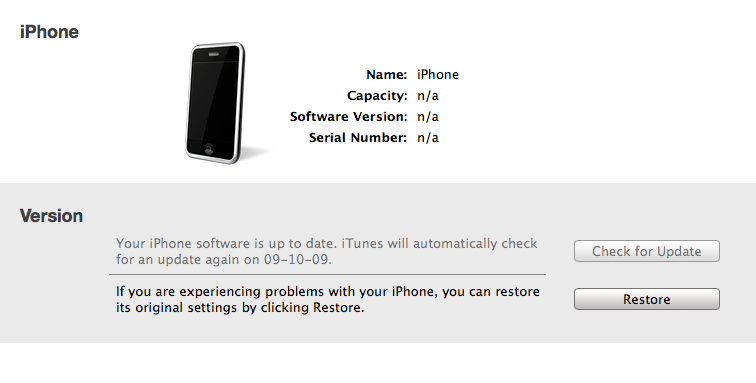
Make sure your iPhone is connected to the computer then follow these instructions to put your iPhone into recovery mode.


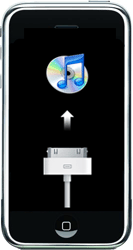
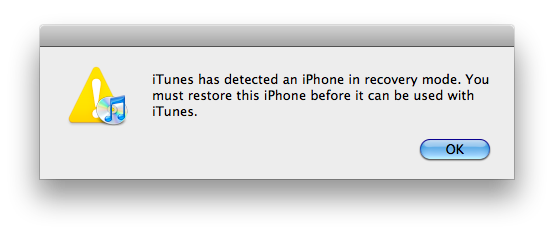
When done correctly your iPhone will display an image of the iTunes logo and a usb cable. iTunes will also pop-up saying it has detected an iPhone in recovery mode.

20049 How To Upgrade Your Jailbroken IPhone 3GS To OS 3.1


20046 500 How To Upgrade Your Jailbroken IPhone 3GS To OS 3.1


Step Ten

In iTunes, hold the Alt/Option key and click Restore.

20047 500 How To Upgrade Your Jailbroken IPhone 3GS To OS 3.1


Step Eleven

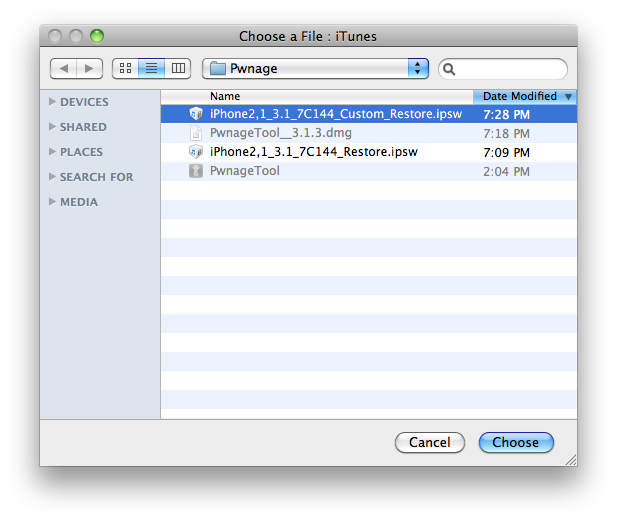
Navigate to the Pwnage folder on your desktop using the dialog window that appears. Select the custom IPSW that was created (iPhone2,1_3.1_7C144_Custom_Restore.ipsw) and click the Open button.

20048 500 How To Upgrade Your Jailbroken IPhone 3GS To OS 3.1


Step Twelve

iTunes will now restore the firmware on your iPhone. This can also take up to 10 minutes. Once done you will be rebooted into jailbroken iPhone OS 3.1!


***THANKS: Thank you to the Dev-Team for their hard work in making this jailbreak and tutorial possible!

Popularity: unranked [?]

written by Duy Phong \\ tags: , , , , , , , , , ,

Oct 03
These are instructions on how to use your iPhone as a USB stick / USB flash drive without needing to install software on your computer.


Step One

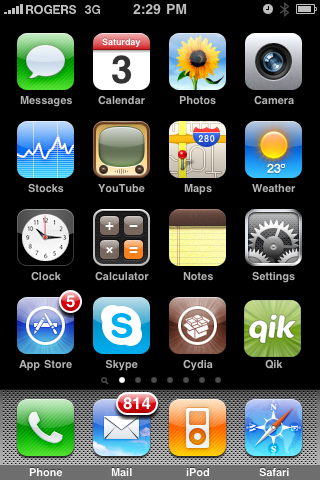
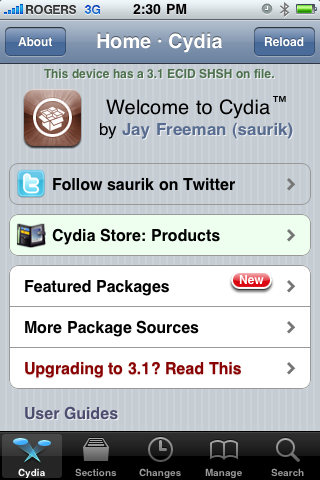
Press to launch Cydia from your iPhone Springboard.

20060 How To Use Your IPhone As A USB Drive


Step Two

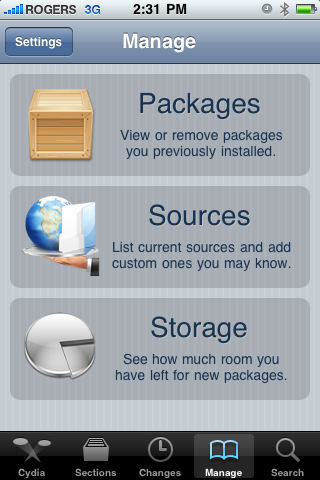
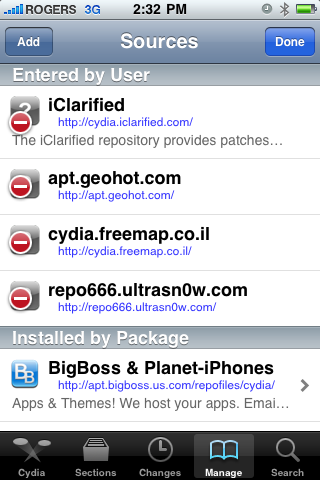
Press to select Manage from the tabs at the bottom

20061 How To Use Your IPhone As A USB Drive


Step Three

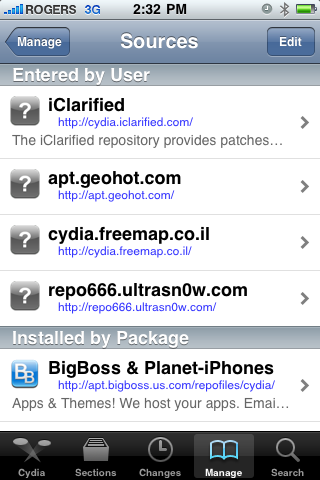
Press the large Sources button.

20062 How To Use Your IPhone As A USB Drive


Step Four

Press the Edit button at the top right of the sources list.

20063 How To Use Your IPhone As A USB Drive


Step Five

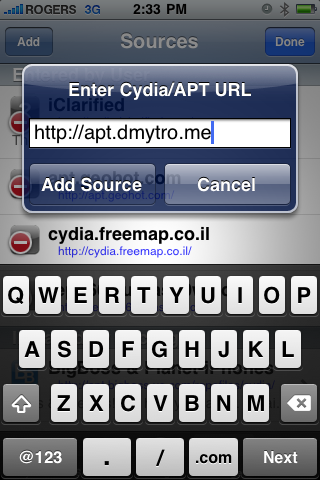
Press the Add button that appears at the top left.

20064 How To Use Your IPhone As A USB Drive


Step Six

Enter http://apt.dmytro.me as the Cydia/APT URL then press the Add Source button.

20065 How To Use Your IPhone As A USB Drive


Step Seven

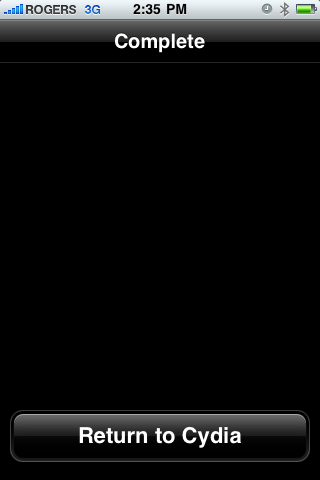
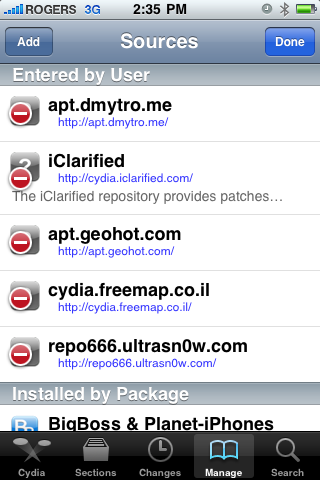
Cydia will now update your sources. Press the large Return to Cydia button when finished.

20066 How To Use Your IPhone As A USB Drive


Step Eight

Press the Done button at the top right of the sources list.

20067 How To Use Your IPhone As A USB Drive


Step Nine

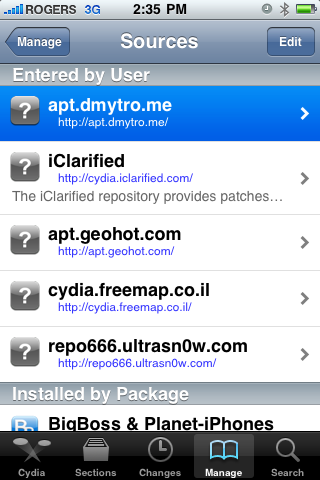
Press to select the apt.dmytro.me source we just added

20068 How To Use Your IPhone As A USB Drive


Step Ten

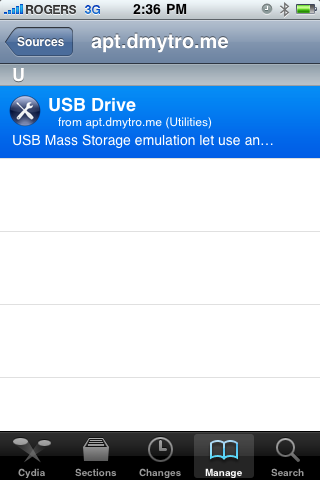
Tap to select the USB Drive package from the list of packages

20069 How To Use Your IPhone As A USB Drive


Step Eleven

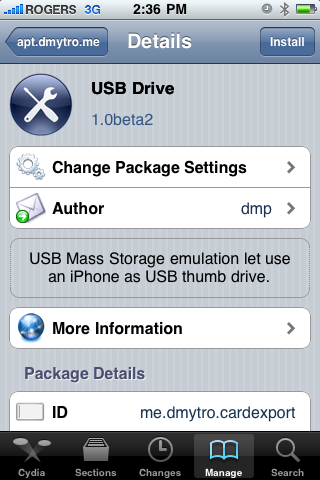
Press the Install button at the top right of the screen.

20070 How To Use Your IPhone As A USB Drive


Step Twelve

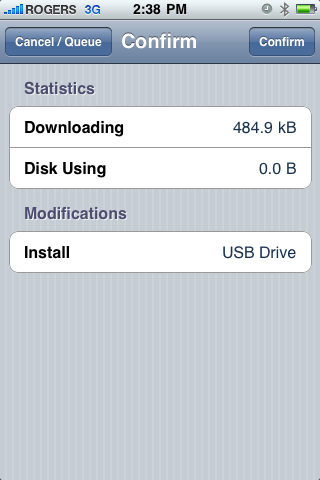
Press the Confirm button at the top right of the screen

20071 How To Use Your IPhone As A USB Drive


Step Thirteen

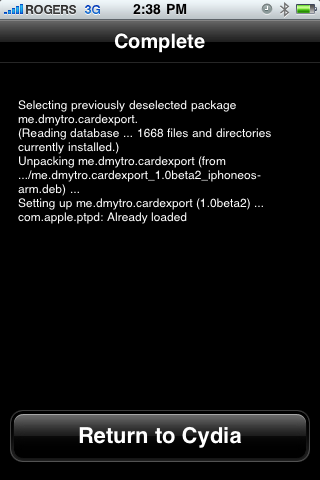
Cydia will now install your package. When it has completed successfully, press the large Return to Cydiabutton.

20072 How To Use Your IPhone As A USB Drive


Step Fourteen

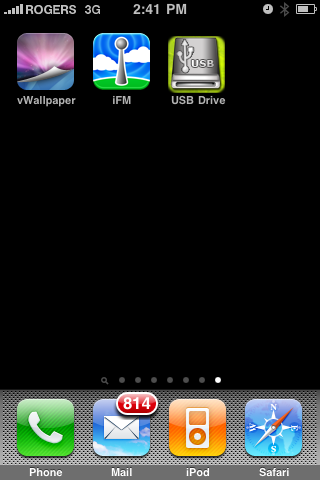
Press the Home Button to return to your Springboard then press to launch USB Drive from your list of applications.

20073 How To Use Your IPhone As A USB Drive


Step Fifteen

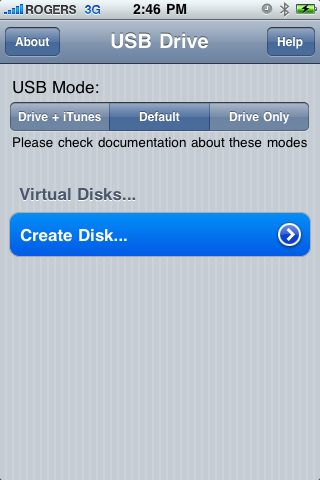
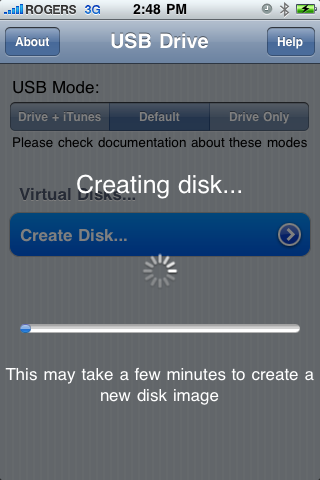
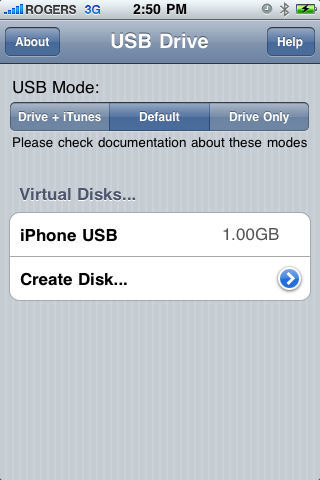
First we must create a Virtual Disk on the iPhone. Press the Create Disk… button to continue.

20076 How To Use Your IPhone As A USB Drive


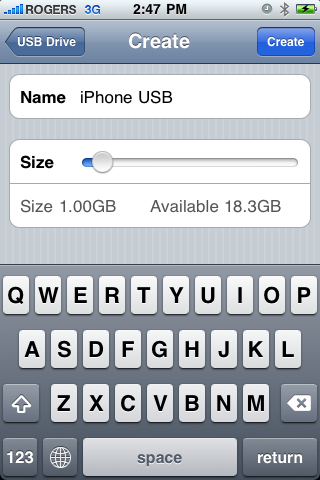
Enter a name for your virtual disk and use the slider to specify how much space you would like to allocate it. When done click the Create button at the top right of the screen.

20077 How To Use Your IPhone As A USB Drive20078 How To Use Your IPhone As A USB Drive


Step Sixteen

Now that we have created a disk to access we must specify the USB Mode. You have three choices:


Drive + iTunes:
In this mode USB Drive replaces Picture Transfer Protocol (PTP) interface with Mass Storage interface and lets you use the iPhone as a USB Drive. At the same time you can perform iTunes synchronization, developers can use XCode debugger ,etc. In this mode USB Mass Storage will not work on Windows with iTunes or Apple USB Drivers installed.

Default:
This is the iPhone default mode. USB Drive doesn’t install daemon application nor modify any USB settings. Picture Transfer Protocol (PTP) is active as well as iTunes synchronization and tethering over USB.

Drive Only:
This mode is to resolve compatibility issues with Windows and iTunes. In this mode USB Drive changes the iPhone’s USB product ID. This will prevent iTunes synchronization, but USB Mass Storage will work on Windows (and other operating systems). Switch to the Default or Drive + iTunes mode will restore iTunes sync.

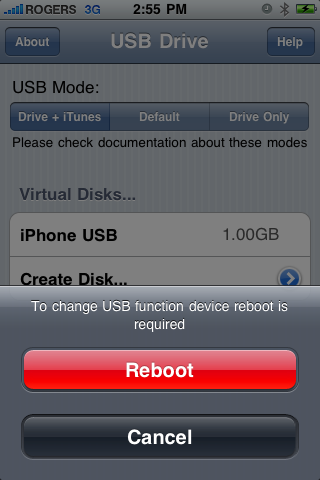
Press to select the mode of your choice. We chose Drive + iTunes because we rarely need Windows compatibility.

20079 How To Use Your IPhone As A USB Drive


A popup will appear asking you to reboot to apply the changes. Press the large Reboot button.

20080 How To Use Your IPhone As A USB Drive


Step Seventeen

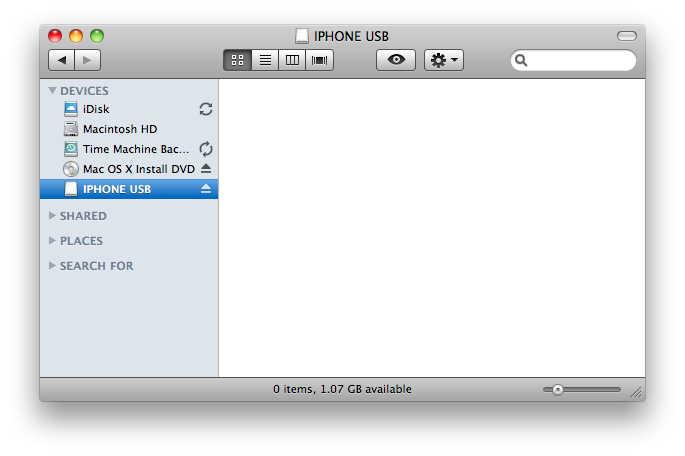
Once your iPhone reboots you will now be able to access the virtual disk you created using USB Drive.

20082 500 How To Use Your IPhone As A USB Drive


20081 500 How To Use Your IPhone As A USB Drive


***THANKS: This is one of the most useful iPhone utilities we have ever seen. A big thanks goes to dmp for creating this app!

Popularity: unranked [?]

written by Duy Phong \\ tags: , , , , , , ,

Oct 03

screenuiu EyeTV Arrives For IPhone (and IPod Touch)

If I was betting, I’d bet most of you now watch TV through your Mac or PC .. sometime in the day, am I right?

Well, set aside that rather expensive computer of yours, and instead pull out that rather expensive phone of yours. How would you like to watch live TV on your iPhone (or iPod touch) instead? Your frantically nodding your head, aren’t you? Since Apple introduced the SDK which has gradually been getting more feature-full as the months have gone on, we’ve seen an influx of applications from companies promising us our live TV fix, on the move. Ed Lea’s Live TV for example.

Elgato is also one of those companies. Most known worldwide for it’s easy to use and accessible Mac based software, EyeTV. The software allows you to schedule, record, watch and rewind live TV. Not only that, but the software will also convert this recorded content into .MP4, and import them into iTunes if you so choose. This is partly why the software is so popular among the iPod crowd. It is worth noting though, that in order for any of this to work you will need to invest in one of the company’s many ‘Freeview’ USB sticks, available here.

I’ve been using their Mac software for quite some time now. It’s like having TV on demand. So, when this tweet shot across Elgato’s Twitter stream, as you can imagine – I was very, very excited.

fz3jt1 EyeTV Arrives For IPhone (and IPod Touch)

EyeTV for iPhone is pretty much the Mac software, just condensed. As with the Mac version though you will need Wi-Fi activated, and EyeTV will also need to be running on the host Mac, in order for the app to function.

Just to recap: Elgato USB stick, EyeTV 3.2 for Mac, EyeTV for iPhone and a Wi-Fi connection.

Still with me? Okay, once you’ve got all of that sorted, you’re ready to experience live TV. Opening the app you’ll be presented with a list of host Macs which are currently running EyeTV. From this screen you can add and delete machines as you please.

Tapping a host machine from this list will then launch you into the heart of EyeTV.
There are four options within the app including:

LiveTV

The live TV tab is just as it sounds. If you have EyeTV running on your host Mac, you’ll be able to stream live TV to your iPhone. The stream will need to buffer for about 5 seconds, but after that you’re good to go. One caveat of this of course is your Mac needs to stay on, in order for the stream to stay active. SD channels seem to stream fine, however HD channels did tend to stutter occasionally.

Recordings

The records tab shows you all the recordings on EyeTV for Mac. These are broke down into four categories: Library, Exporting, Recording Now and Past week. From here you can manage what records are currently recording, which are being exported for iPhone, and relive recordings you’ve created from the past week.

2uh9st5 EyeTV Arrives For IPhone (and IPod Touch)

Schedules

The schedules tab is a simple section in EyeTV for iPhone which shows you what shows you have scheduled to record. If you happen you have scheduled shows, you can go into them and preview what the show will be about, as well as choose whether or not you want to remove it from your schedule, for recording.

Guide

The guide is probably the main part of this app. Quite simply, if you still have your ‘TvTv’ account you should have been asked to setup when you purchased EyeTV for Mac, this tab allows you to see the TV guide schedule for all the channels yours EyeTV tuner found for you. Just like on your Mac you’re then able to go into the channel and show you wish to record, and choose whether to record it or not. Not only that, but hitting ‘Watch Now’ will throw you into the live stream of that channel. Cool eh?

It’s worth noting that TV shows recorded with EyeTV for IPhone won’t be recorded to your iPhone. As you tap to record, the EyeTV app will send a ‘record’ command to your Mac software, asking it to record that specific programme for you.

The Verdict

And that is basically EyeTV for iPhone in a nutshell. This app isn’t perfect. In fact, far from it. For one, the app will only work over a Wi-Fi connection. I see why they did this, they need to ensure the Live TV stream is the best quality it can be, but it’d be really great to have the option to use the app over 3G.

The other thing I found strange was there’s also no option to take any of your ‘recordings’ offline. Currently, if your not connected to Wi-Fi, or your Mac is switched off, you can’t access your TV recordings from the app. I find this disappointing on Elgato’s part, and really hope they can offer offline recordings in the future.

That said, if you’re one of these people who leave their Mac on all the time, and just looking to have Live TV with remote recording functionality in your pocket, EyeTV for iPhone is probably the app for you. EyeTV lives up to the name Elgato has made so popular, and I can only see the application getting better.

 EyeTV Arrives For IPhone (and IPod Touch)

Popularity: unranked [?]

written by Duy Phong \\ tags: , , , , , , , ,

Oct 03

iphone easyplanner Free Codes: EasyPlannerget this app free square1 Free Codes: EasyPlanner

Git ‘er done! easyPlanner is a GTD app made with a “less is more” philosophy.

iTunes Link – easyPlanner

post app store review Free Codes: EasyPlanner

 Free Codes: EasyPlanner

Popularity: unranked [?]

written by Duy Phong \\ tags: , , , , ,

Oct 03

iphone flitter price Free Codes: Flitter!get this app free square1 Free Codes: Flitter!

Stay on top of your fave RSS and Twitter feeds with in-app web browsing and article search. OS3.0+ required!

iTunes Link – Flitter!

post app store review Free Codes: Flitter!

 Free Codes: Flitter!

Popularity: unranked [?]

written by Duy Phong \\ tags: , , , , ,