About a year ago, Twitter had processed about 1 billion tweets total. That was around the same time that the service struggled to stay online and kept showing us the “fail whale.” Within one year later the company processed an additional 4 billion tweets more. The statistics of the tweets being sent are processed by Gigatweet. The 5 billionth tweet was from Robin Sloan who sent out the tweet “Oh lord.”
Twitter had served 1.6 billion tweets up until this past April, indicating that 3.4 billion tweets were sent out in the last 6 months. Five billion tweets requires a lot of processing power and bandwidth. Its a good thing that Twitter has $155 million in venture capital to keep the servers running. Twitter was co-founded by Biz Stone, Jack Dorsey, and Evan Williams in 2006.
Irish rock band U2 will be performing a concert this Sunday in Pasadena, California. The concert has already been sold out and YouTube will be streaming the concert for free and live. About 96,000 fans will be in the audience. The tour and video is being managed through U2’s partnership with Live Nation.
“The band has wanted to do something like this for a long time. As we’re filming the LA show, it’s the perfect opportunity to extend the party beyond the stadium. Fans often travel long distances to come to see U2 – this time U2 can go to them, globally,” stated U2 manager Paul McGuinness. The concert will be available on U2.com and on YouTube. The U2 360 Tour had started in June with the first concert taking place in Barcelona.
The U2 360 Tour has a Twitter account that you can follow too. Some of the tweets that the account sends out are official videos made by U2 representatives. I especially like the video of the CN Tower that they made in Toronto.
These are instructions on how to patch the CommCenter of your 3.1.2 iPhone 3G, 3GS to enable Internet tethering.
Warning: These are advanced instructions and are not suggested for beginners.
Prerequisites: You must be jailbroken on the iPhone 3.1.2 firmware. You need to have SSH installed and you need to know the IP Address of your device on the local network. Finally you will also need Fugu installed.
Step One
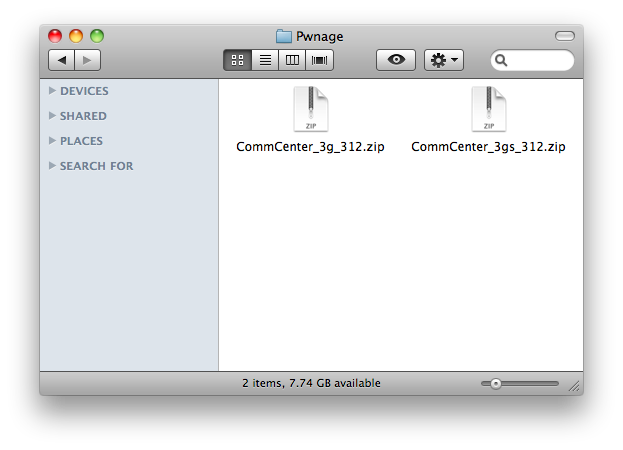
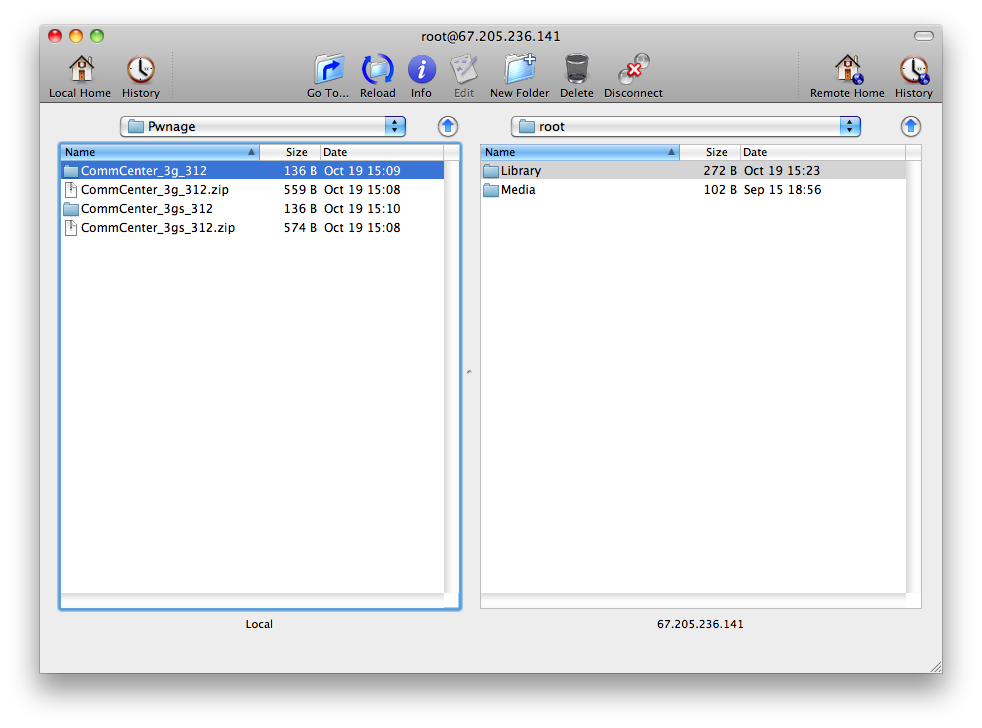
Create a folder on your desktop called Pwnage. In it place the patch file for your appropriate device. [3G] [3GS]
Step Two
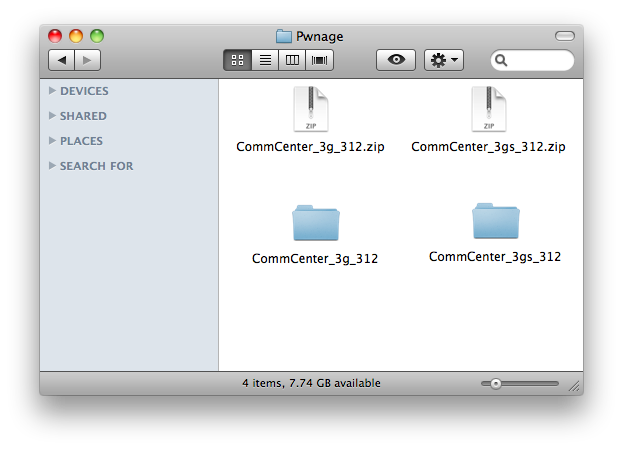
Double the download zip file to extract its contents. You will get a folder called CommCenter_3g_312 or CommCenter _3gs_312.
Step Three
Launch Fugu from your applications folder.
Step Four
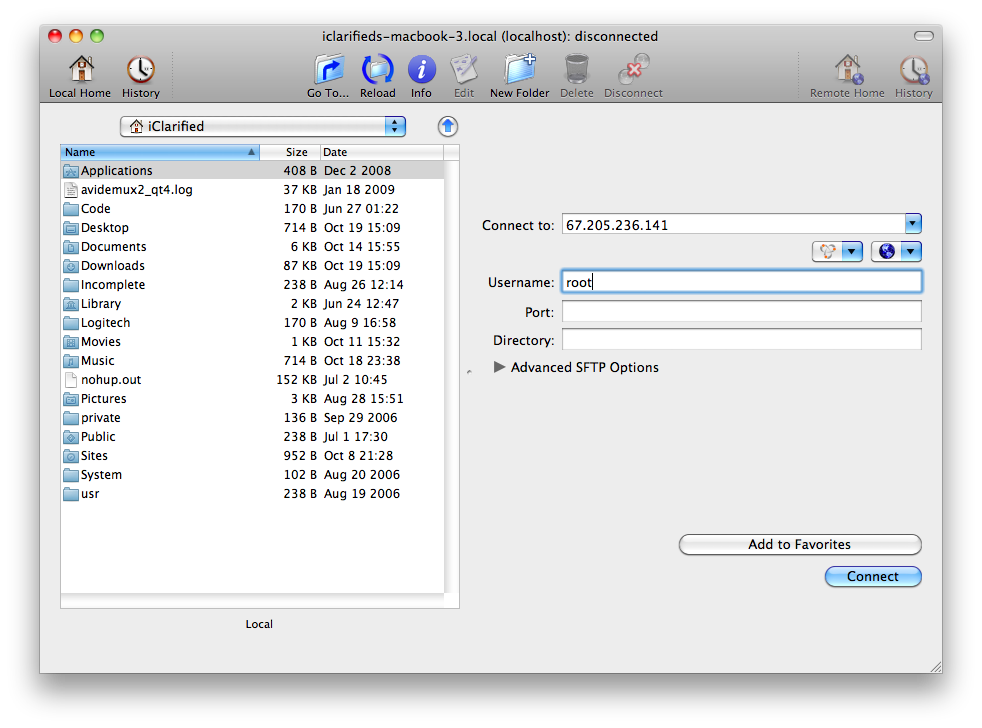
Input your iPhone’s IP Address in the Connect To: field and use root as the Username. Click the Connect button to continue. For this to work you must have SSH installed.
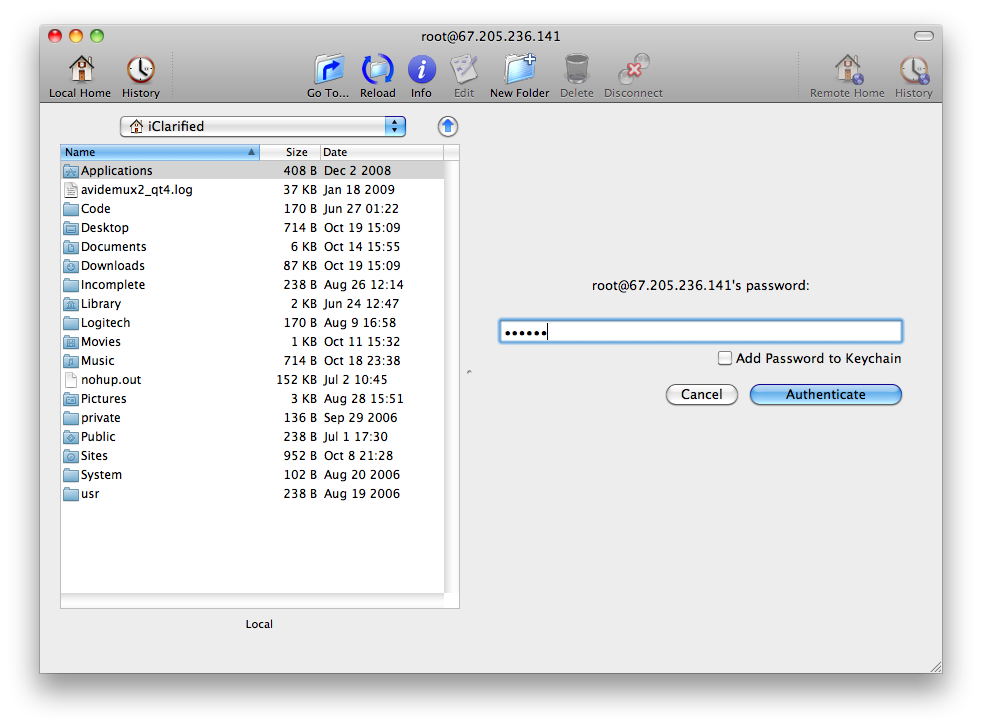
When prompted input alpine as the password then click the Authenticate button.
Step Five
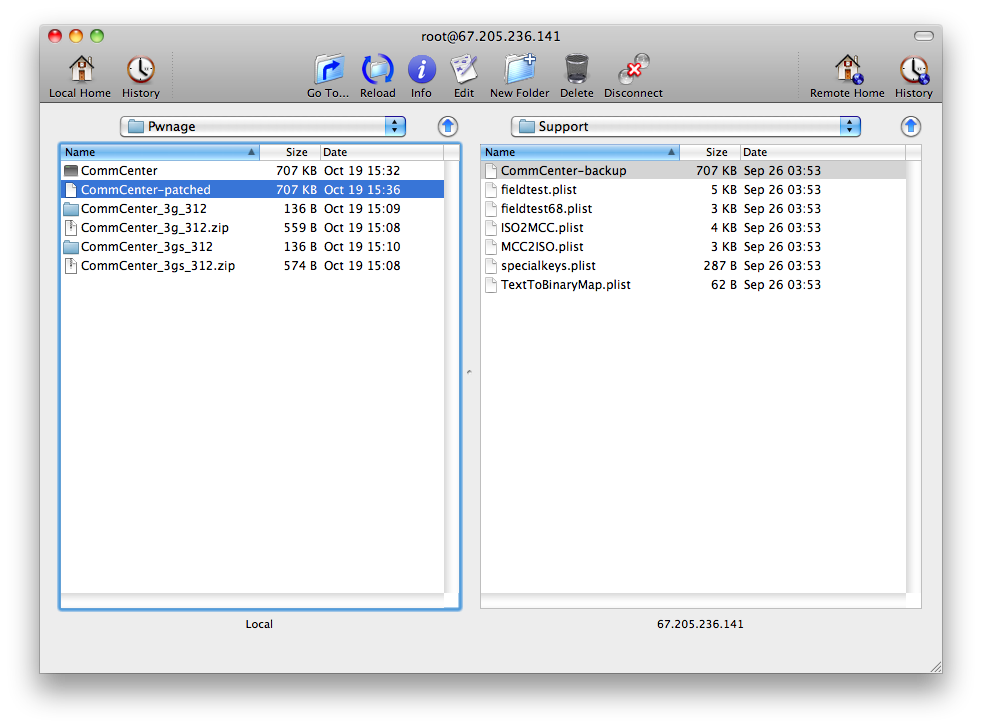
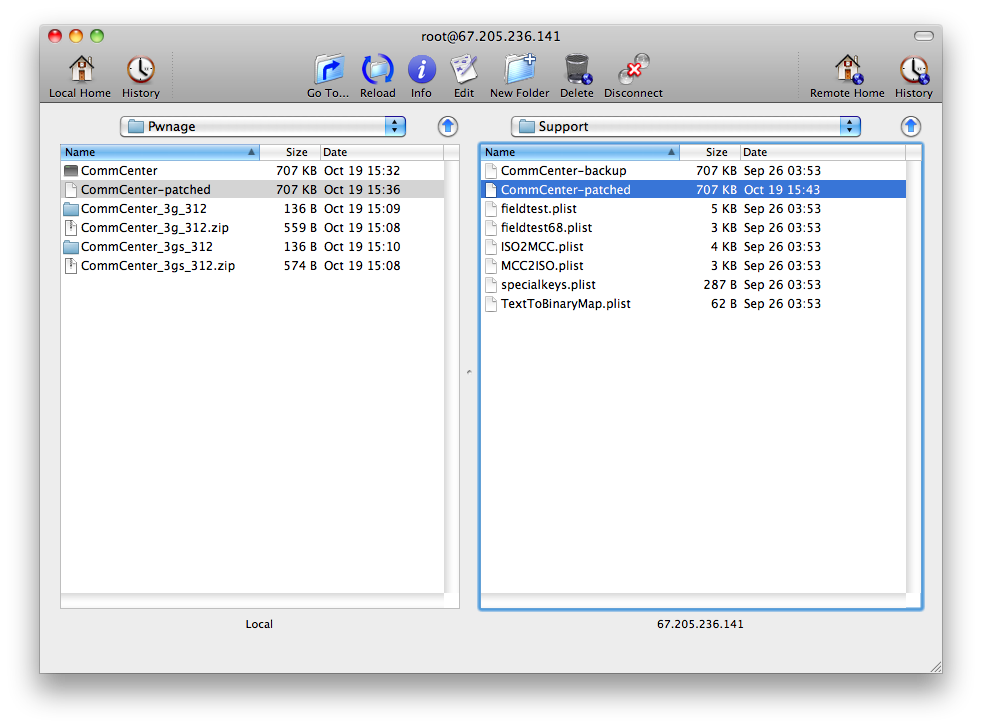
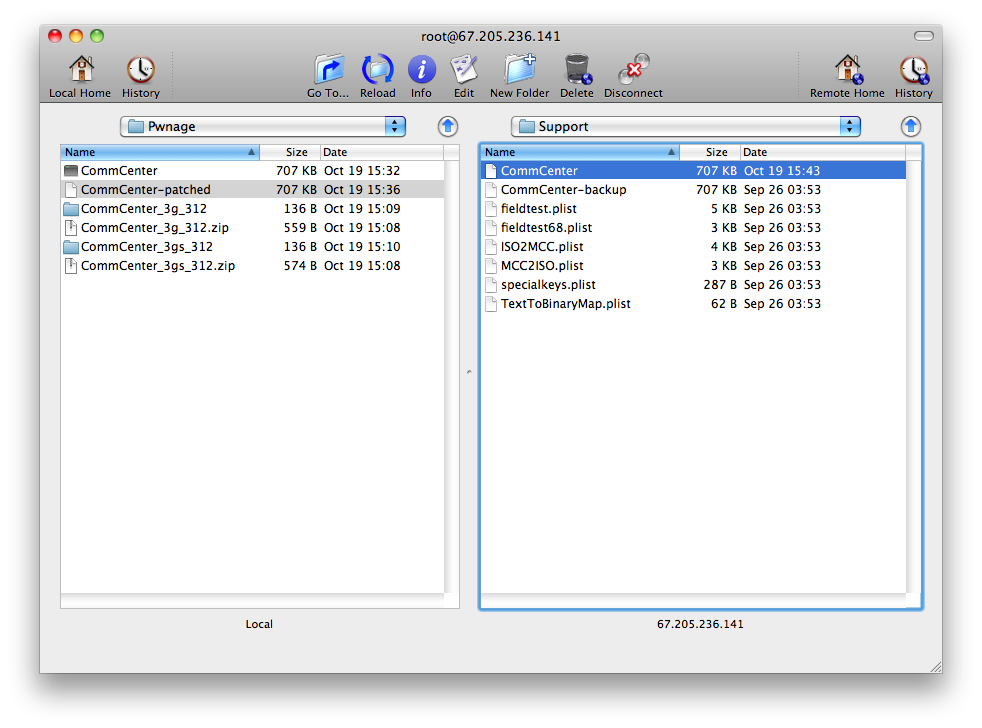
Once Fugu opens the directory contents of your device, use the left panel to navigate to the Pwnage folder on your desktop.
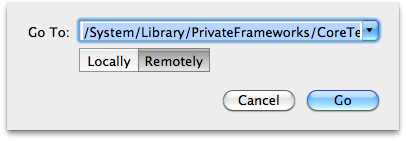
Next, click the Go To.. button on the toolbar.
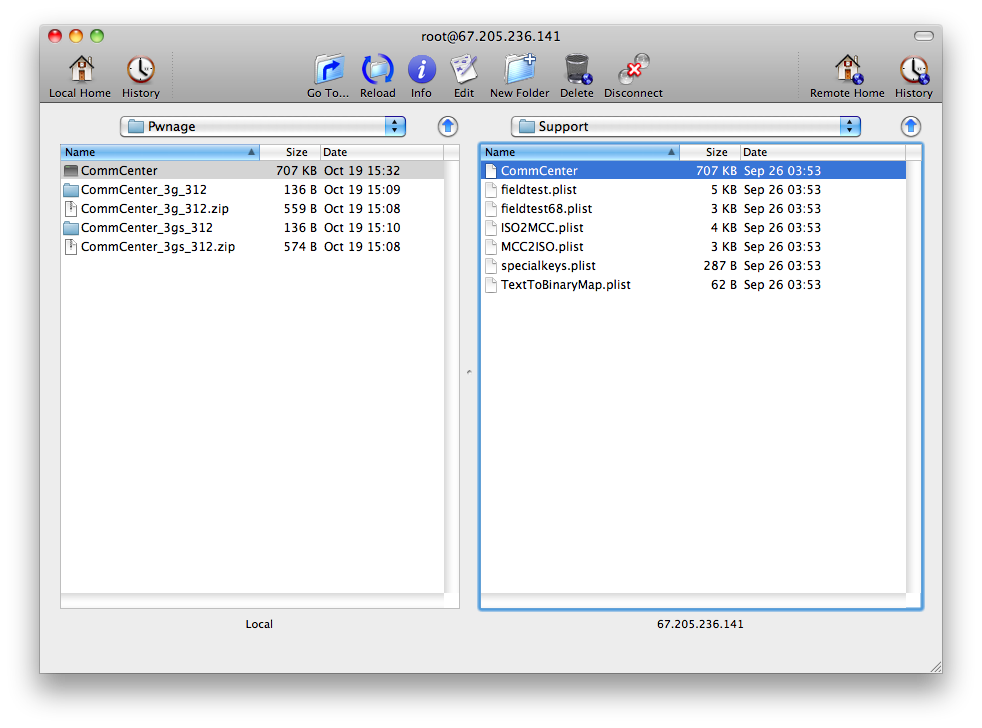
Input /System/Library/PrivateFrameworks/CoreTelephony.framework/Support/ into the Go To field, selectRemotely, then click the Go button.
Drag the CommCenter file from the right panel into the left panel to copy it to your computer.
Step Six
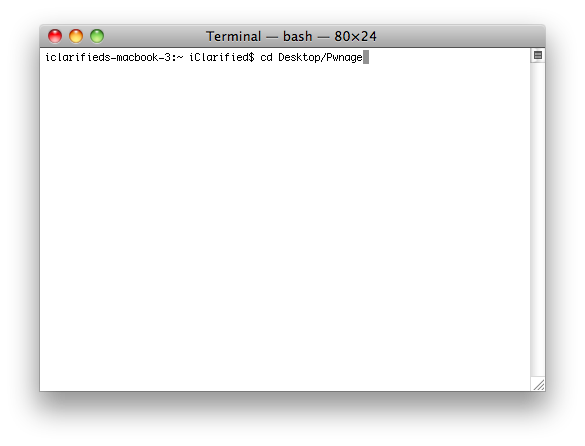
Launch Terminal by double clicking it from the Applications:Utilities folder on your computer.
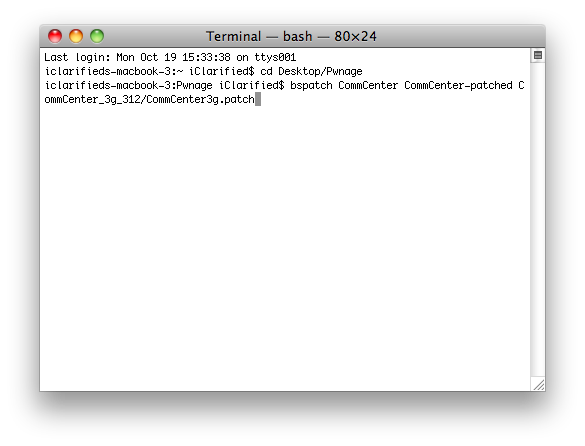
Execute cd Desktop/Pwnage to navigate to your Pwnage folder.
Execute bspatch CommCenter CommCenter-patched CommCenter_3g_312/CommCenter3g.patch to make a patched version of the CommCenter.
IMPORTANT: Remember to change 3g to 3gs if you have the iPhone 3GS. ie. bspatch CommCenter CommCenter-patched CommCenter_3gs_312/CommCenter.patch
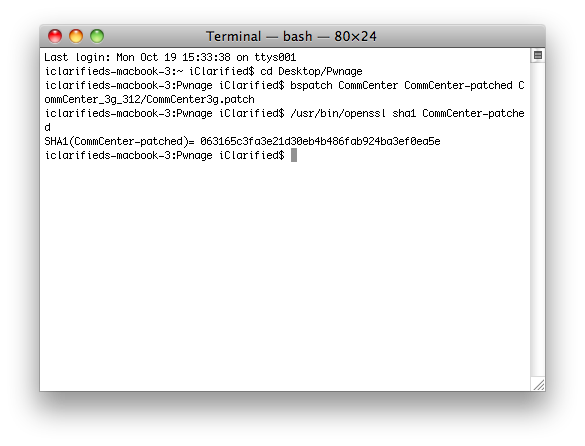
Now we need to confirm that the patched file was created successfully. Input this command into the Terminal window to check: /usr/bin/openssl sha1 CommCenter-patched.
Check your SHA1 with the correct ones below to make sure the patch occurred successfully. If it did not. Do not continue.
1b19712035f33654cf72838ebe1a2033931b56b2 # 3GS
063165c3fa3e21d30eb4b486fab924ba3ef0ea5e # 3G
Step Seven
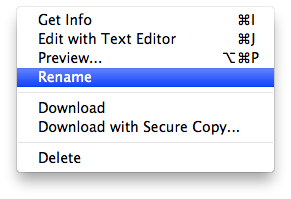
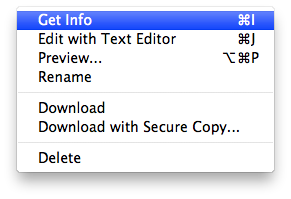
Return to Fugu and Control-Click CommCenter in the right panel. Select Rename from the contextual menu and rename the file to CommCenter-backup.
Click the Reload button on the toolbar if necessary then drag the CommCenter-patched file from the left panel to the right.
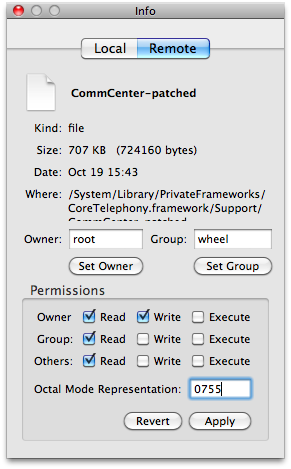
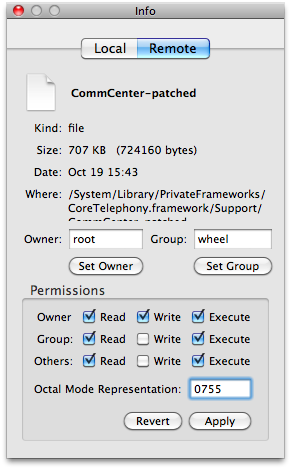
Control-Click the CommCenter-patched file from the right panel and select Get Info from the contextual menu. At the bottom of the Info window change the permissions to 0755 and click the Apply button.
Control-Click the CommCenter-patched file in the right panel and select Rename from the contextual menu. Rename the file to CommCenter.
Step Eight
You may now reboot your iPhone and you will be able to use Internet Tethering. You may need to follow this tutorial to apply the correct settings for your carrier.
Cast your mind back to August 5th 2008. The sun was shining, and the birds where singing. That was until the (now iconic) ‘I Am Rich’ app rocked the App Store sideways. Officially becoming the most expensive application to of hit the App Store ever, and priced at $999.99, the app hit the mainstream for being controversial to the highest level. Offering nothing more than a ’souvenir’ of personal wealth, the app was designed to show how ‘rich’ you were. The premise being, if you owned it, you were rich.
On August 6th 2008, following it’s release, and in response to the huge amount of media coverage and bad press the title had garnered, Apple pulled the application completely, from all 72 countries iTunes operated in. Now fast forward.
Just when we thought it couldn’t happen again, it has. October 16th 2009. Developed by 15 year-old Mark Gurman, You Are Rich hit the App Store. Designed to be a complete copy of the original, You Are Rich is the absolutely bare bones of iPhone development. After you get past the shock of spending $99.99 on a picture of a glowing red gem-like fire-ball thingamajig, maybe the ‘Secret Mantra’ will make you feel a tad better? Then again, maybe not ..
I was lucky enough to grab a review copy from Mark, making me – not really that rich. However, if this is your type of app, you’ll be glad to know this version will cost you ten times less than the previous, at just $99.99, and has a slightly different ’secret’ mantra than the original. For those of you who can’t afford this app, or simply can’t afford to throw your credibility out the window with this app, the new mantra is below for your viewing pleasure:
“If you see this: You are Brave, You are a Success, You are Bold, You are Flashy, You are Amazing, You are Rich.”
On the mantra screen you’ll find a button which states ‘Play Mantras’. Doing so throws up three options, including: Mantra, You Are Rich and I Am Rich. Tapping each one seeing the app play a different sound, with the first reading out the already written ‘mantra’ aloud, in this kinda eery hypnotic voice.
The fact is, I’d get this app while you still can! No really – Since being exposed to the app’s mantra, my personal wealth has grown hugely. In fact, I’m typing this here now from a small yacht on the Caribbean, while sipping a Margareta. While I’m here I might actually start a new business – “You Are Rich” branded handkerchiefs. Think it’ll take off?
Developer: More Blue Sky
Price: $0.99
Version Reviewed: 1.5
iPhone Integration Rating: 4.4 out of 5 stars
User Interface Rating: 4.25 out of 5 stars
Re-use / Replay Value Rating: 3.9 out of 5 stars
Overall Rating: 4.18 out of 5 stars
Sometimes I find myself getting lost in the vast sea of the app world. I get wrapped up into all sorts of games that provide fleeting fun, but lose site of some of the little things that make me the happiest. I’ll never forget the dumb laughs that we would get playing iBeer or flicking the stupid Zippo Lighter over and over again. Don’t get me wrong, I’m super grateful that I get to play games like geoDefense Swarm on my iPhone every day, but it’s important not to lose sight of the little things that keep me entertained. Since the app stores inception, these little novelty apps have grown from being digital beers to somewhat impressive things, like augmented reality apps and highly entertaining photo manipulators. Fortunately for me, while digging for the next great novelty app, I found Ransom Letters sitting in the ‘What’s Hot’ section of the app store and decided to give it a go.
Ransom Notes is a simple little app that let’s you put ransom note letters (you know, the ones that are cut from magazines in all different sizes) on any picture you take. Within the app, just take the picture, type in the sentence you want to display over the picture, and KABLAM, you have a ransom note made up that you can send to any of your unsuspecting friends / co-workers.
As a typical customer, I’d just leave it at that, but as a reviewer I feel the need to dive in a bit in order to fully grasp what I’ve got here. The apps controls are fairly simple, giving you a small but effective number of options to work with. Typing your word in is as simple as clicking on the ‘type it’ button. It’s extremely intuitive, but there is definitely a glaring flaw. I can type words out to my hearts content, but what is typically the point of a ransom letter… to get money right? Well, I hope you’re prepared to type in the word dollars, because the dollar sign is not part of Ransom Letters repertoire, an omission that will hopefully be fixed on a later version. Once you type your word in, it is quite simple to move words around the page with your finger and the sizes are batch changed by pinching. There is no individual word sizing unfortunately, but I hear it may be included in a future update. Also, to make your words that much more cryptic, you can shake to shuffle, giving you scrambled sentences that will have your victims panicking in cold sweat.
Assuming that you are a fan of the concept, there really isn’t much not to like about Ransom Letters. It’s fun, it’s fast, and it only costs 99 cents. I know that it’s simple, but I’ll probably be happily using this app long after I’m done playing larger, more expensive apps like Rock Band and Madden.





 Ransom Notes is a simple little app that let’s you put ransom note letters (you know, the ones that are cut from magazines in all different sizes) on any picture you take. Within the app, just take the picture, type in the sentence you want to display over the picture, and KABLAM, you have a ransom note made up that you can send to any of your unsuspecting friends / co-workers.

Comments